Servers, channels and roles
Channel types, categories, the permission system, channel overrides, role icons and Notes channels.
Servers
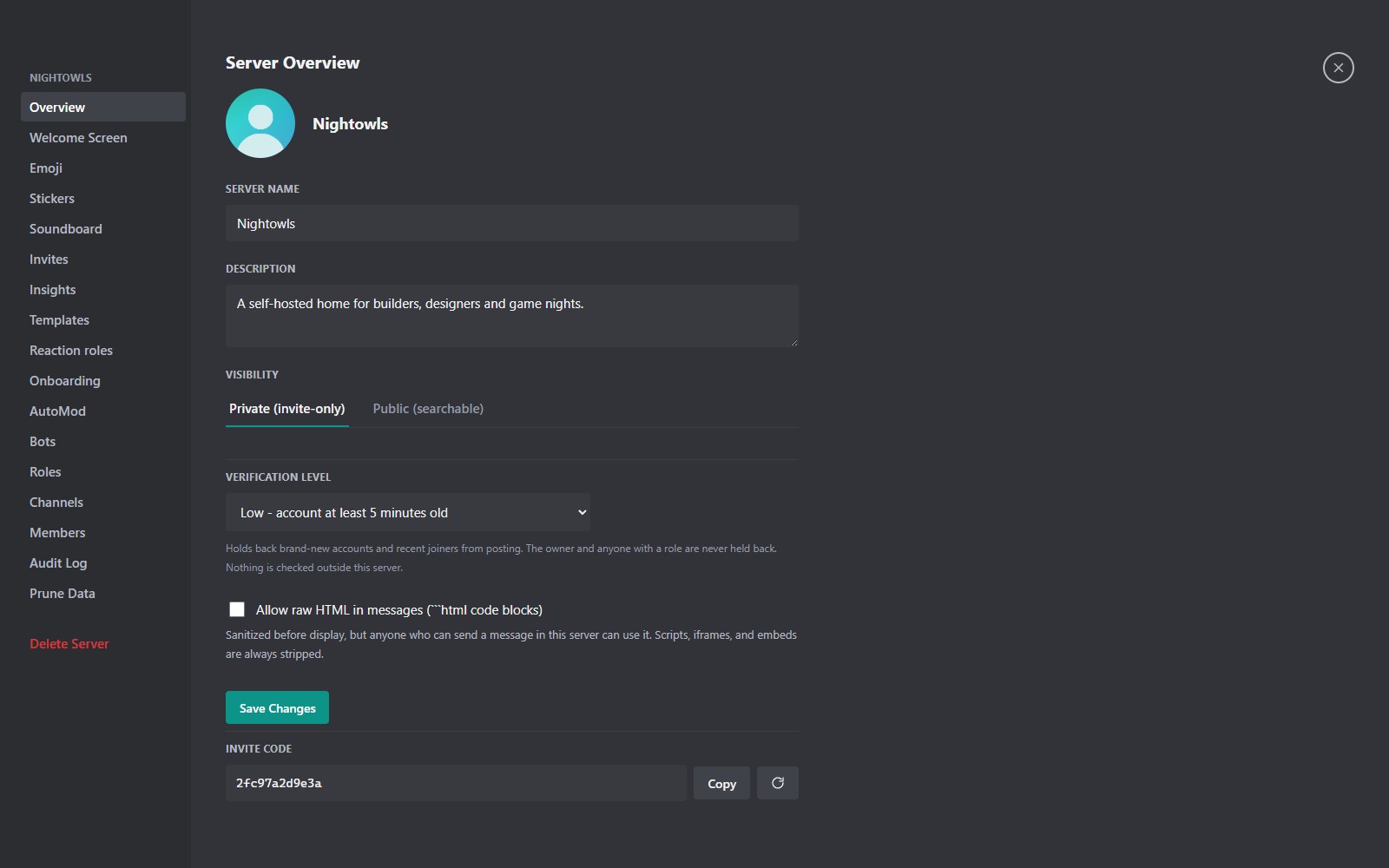
A server is a community: members, channels, roles and settings. People join by invite code, by a direct invite from someone's profile card, or from the public server directory. A server can be private (invite only) or public (listed in discovery, optionally auto-join).
Open Server Settings from the server name at the top of the channel list.
The server icon is set under Overview. An icon with transparent parts normally sits on a colored plate; untick Show icon background to show the icon alone, or pick the plate's color. A server without an icon always shows its initials on the plate, in the color you choose.
Invite links
Every invite code also works as a link: https://. It opens a small page with the server's name and icon (and its member count when the server is public), a Join in browser button, an Open in app button and the download links the server owner has set. Opening the page never uses up an invite, and joining always asks for confirmation first.
- Copy link sits next to Copy in the invite window and in Server Settings, Invites (for every invite and for the vanity link).
- Join in browser signs you in or lets you register first, then asks "Join this server?".
- Open in app uses an
mcr://address. The Windows desktop app and the Android app open it, ask before switching to a different server and ask again before joining. See Desktop app and Android app.your-server:8443/ <code> - The old way still works: paste the code into Add Server, Join with invite. Channel invites and
code@domaininvites from federated servers work as links too.
Channel types
| Type | What it is |
|---|---|
| Public text | Anyone with the right to view the server can read and write |
| Private text | Visible only to members a role or override lets in |
| Announcement | A channel people can read but only managers can post in |
| Read-only | Like announcement, for rules and information |
| Voice | A voice room with camera and screen sharing |
| Stage | A voice room split into speakers and audience |
| Forum | A channel made of threaded posts |
| Notes | A private encrypted notebook for each member |
Create channels with the + next to Channels and organize them into categories by dragging. A channel can have an icon, a topic and slowmode. A text channel can also be marked age-restricted; see Moderation and safety.
Voice and stage channels get a quality preset when they are created (Mobile, Low, Medium, High or HD Music). To change it, delete the channel and create a new one.
Roles and permissions
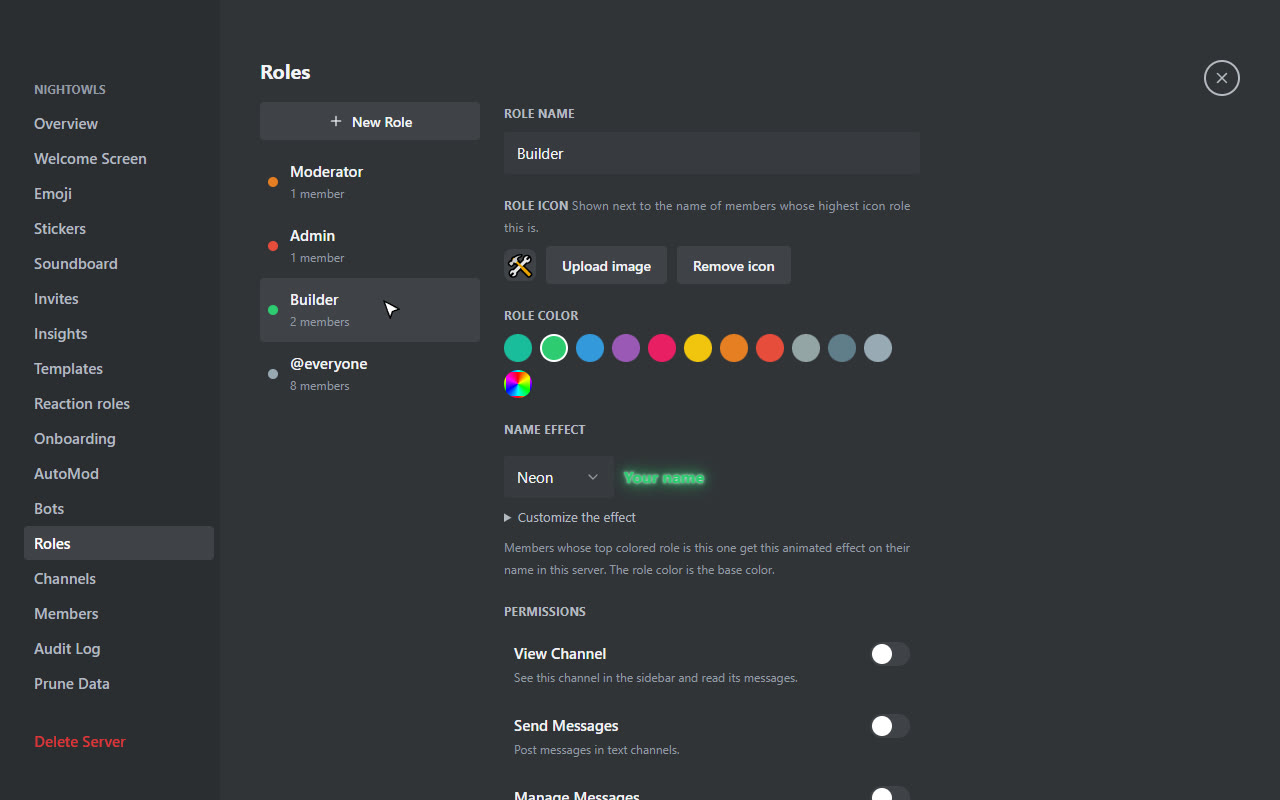
Roles are sets of permission flags. Everyone has the built-in @everyone role, and you can create as many more as you like. A member's permissions are the union of their roles.
| Permission | Allows |
|---|---|
| View Channel, Send Messages, Attach Files | Basic reading, writing and uploading |
| Manage Messages | Delete and pin other people's messages |
| Edit Messages | Edit other people's messages; the message then shows "(edited by Name)". Not part of Manage Messages, grant it separately. Server administrators and the owner always have it |
| Manage Channels | Create, edit and delete channels, categories and channel webhooks |
| Manage Roles | Create roles and assign them |
| Manage Server | Rename the server, invites, onboarding, AutoMod, templates, insights |
| Kick Members, Ban Members | Remove people |
| Moderate Members | Time people out, set slowmode, mute in voice |
| Create Invite, Change Nickname, Manage Nicknames | Invites and display names |
| View Audit Log | Read the log of moderator actions |
| Prune Content | Delete old history in this server |
| Manage Bots | Create and edit this server's bots |
| Create Checklists | Post checklists in public channels |
| Administrator | Everything |
Nobody can grant a permission they do not hold themselves. The owner always has every permission, and the server enforces this rule rather than the interface.
Role colors and icons
Each role has a color, an optional animated name effect (the same effects and color stops as personal name effects: members whose top colored role has one get it on their name in that server) and a role icon: an emoji or an uploaded image. The icon of a member's highest role that has one is shown next to their name in chat and in the member list. A per-member name color override beats the role color.
Channel overrides
Open a channel's settings to allow or deny permissions for a role or a single member in just that channel. A deny on a channel beats a grant from a role.
Notes channels
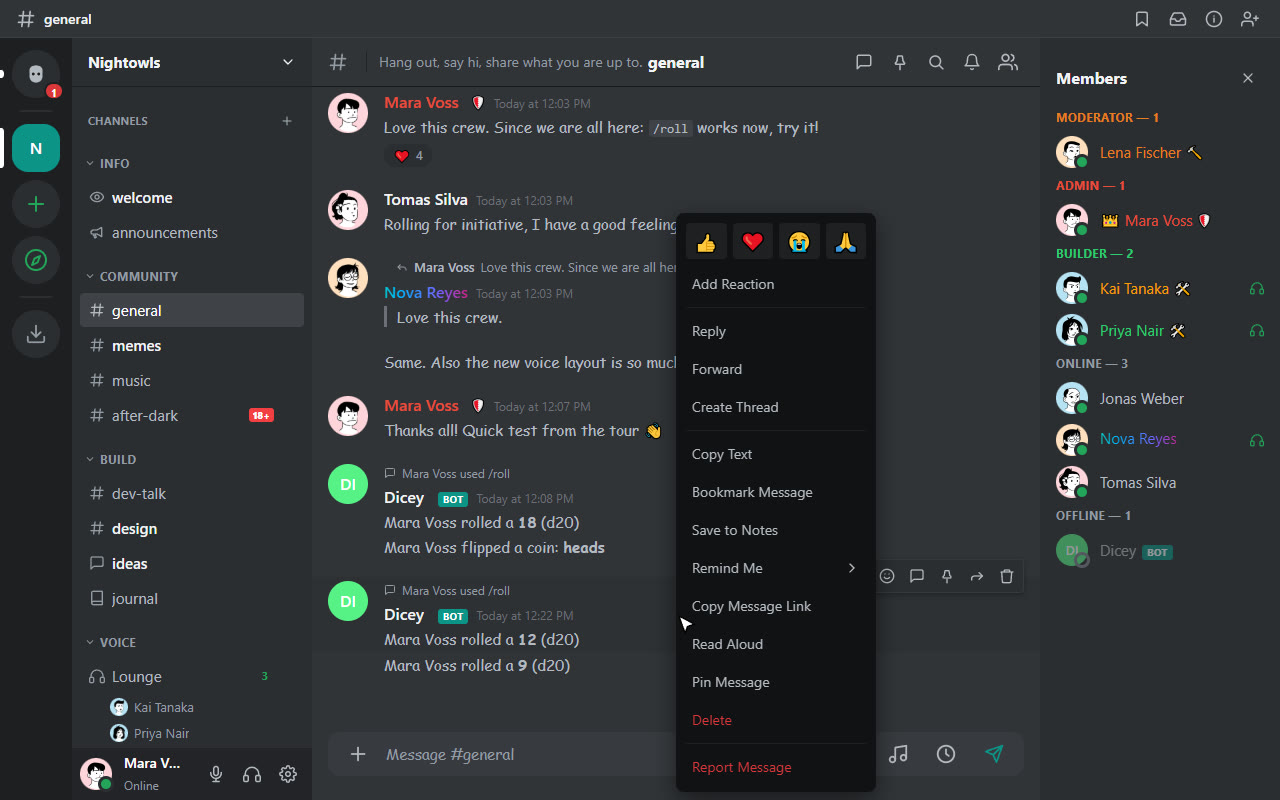
A Notes channel gives every member a private notebook inside the server, with text and up to five attachments per note. Everything is encrypted in the browser with a key derived from your Passport, so the database and the admins cannot read it. Admins can only delete notes older than a date. Notes cannot be searched, forwarded or converted to another channel type, and losing your Passport means losing your notes. A note can also hold a checklist, stored inside the encrypted note. Note text can be selected and copied, and right-clicking any message offers Save to Notes (desktop). Attaching a large file shows an encrypting step and then an upload progress bar in the draft; Save waits until the upload has finished.
Notes storage limit
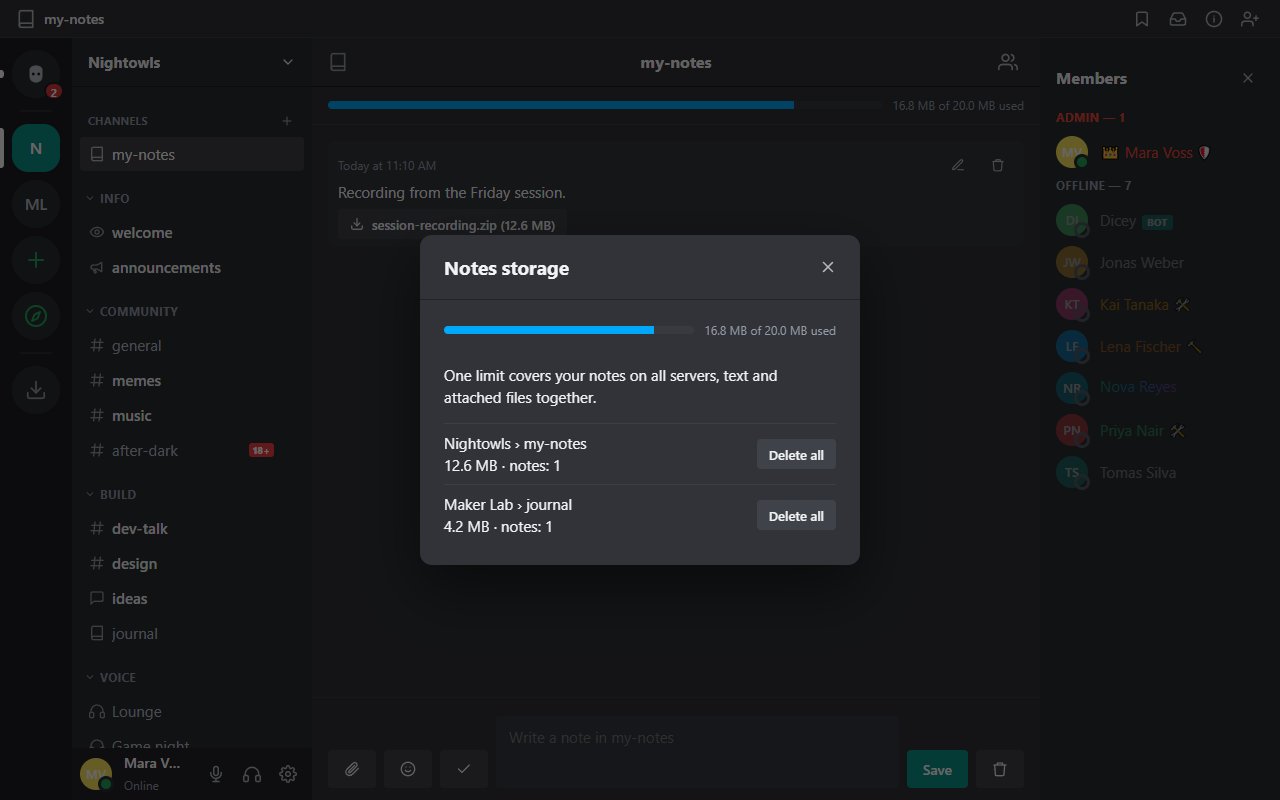
Each person has one storage limit for all their Notes channels on all servers of the instance, 2 GB by default. Note text and attached files both count, so creating more Notes channels or joining more servers gives no extra space.
A bar at the top of every Notes channel shows how much you use. It turns orange from 90% and red when the storage is full. A file that does not fit is refused before it is uploaded. When you are at the limit you cannot add notes or files or make a note larger, but you can still read, shorten and delete.
Click the bar to open Notes storage: it lists the space used per server and channel, each with Delete all. The list includes servers you have left or were removed from. You can no longer open those notes, but they still count until you delete them there.
Administrators can change the limit for a single person, see Administration.
Server rail and folders
Your server rail is personal: drag servers into folders with their own icon and color. Mute a server or a channel, or limit notifications to mentions, from the right-click menu.
Welcome screen and events
The welcome screen lists highlighted channels for new members. Scheduled events have a name, description, location, start and end, and RSVP tracking.
Next
- Put the rules in front of newcomers with Community tools.
- Keep order with Moderation and safety.
Emoji, stickers and sounds
In Server Settings the Emoji, Stickers and Soundboard pages take one file at a time or many at once with Bulk upload: each file becomes an item named after its file (cleaned to letters, numbers and underscore, and made unique). Click a name to rename it in place. The music note button in the message box of every server channel lists the server's sounds: a click plays the sound for you, or for the whole room if you are in a voice call on that server. Outside a call, in a server channel or thread, a click posts the sound as a sound message with a play button that anyone can click.