Messaging and search
Writing, editing, replies, threads, forums, polls, checklists, voice and scheduled messages, attachments and search.
The basics
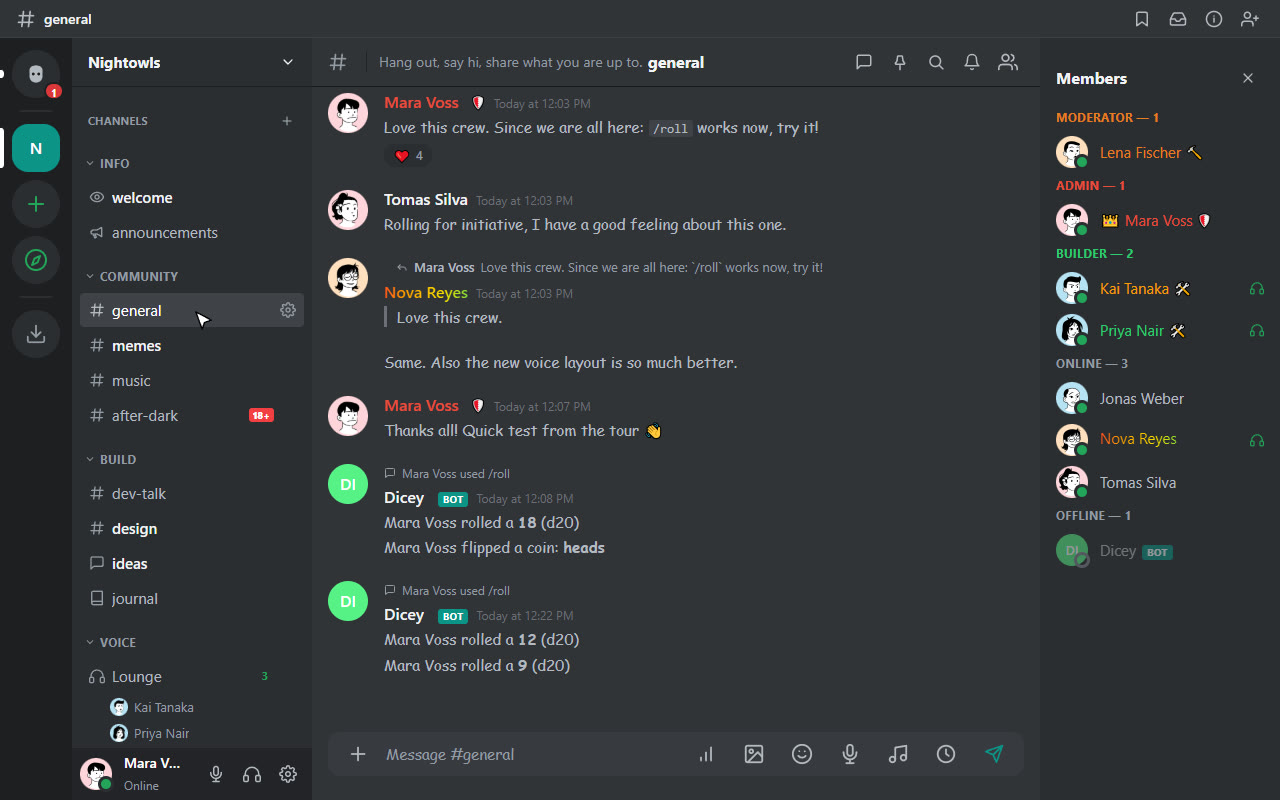
Type in the box at the bottom and press Enter. Use Shift+Enter for a new line. Hover a message for its actions: reply, react, thread, edit, pin, forward and more. Press Up in an empty box to edit your last message. People with the Edit Messages server permission (or the site's Edit Any Message) can also edit other members' messages in channels and forum posts; those show "(edited by Name)".
Group DMs (three or more people) have a moderator, the creator. The creator can edit and delete any message in the group and remove members with the Group members button in the header (gear button on the phone). When only two people are left the group becomes an ordinary 1:1 with no moderation, and a member leaving down to two does the same. If the creator leaves, the group is deleted for everyone, after a confirmation. In 1:1 conversations only the author can edit or delete a message.
Formatting
**bold**,*italic*, `||spoiler||hides text until clicked.- Type
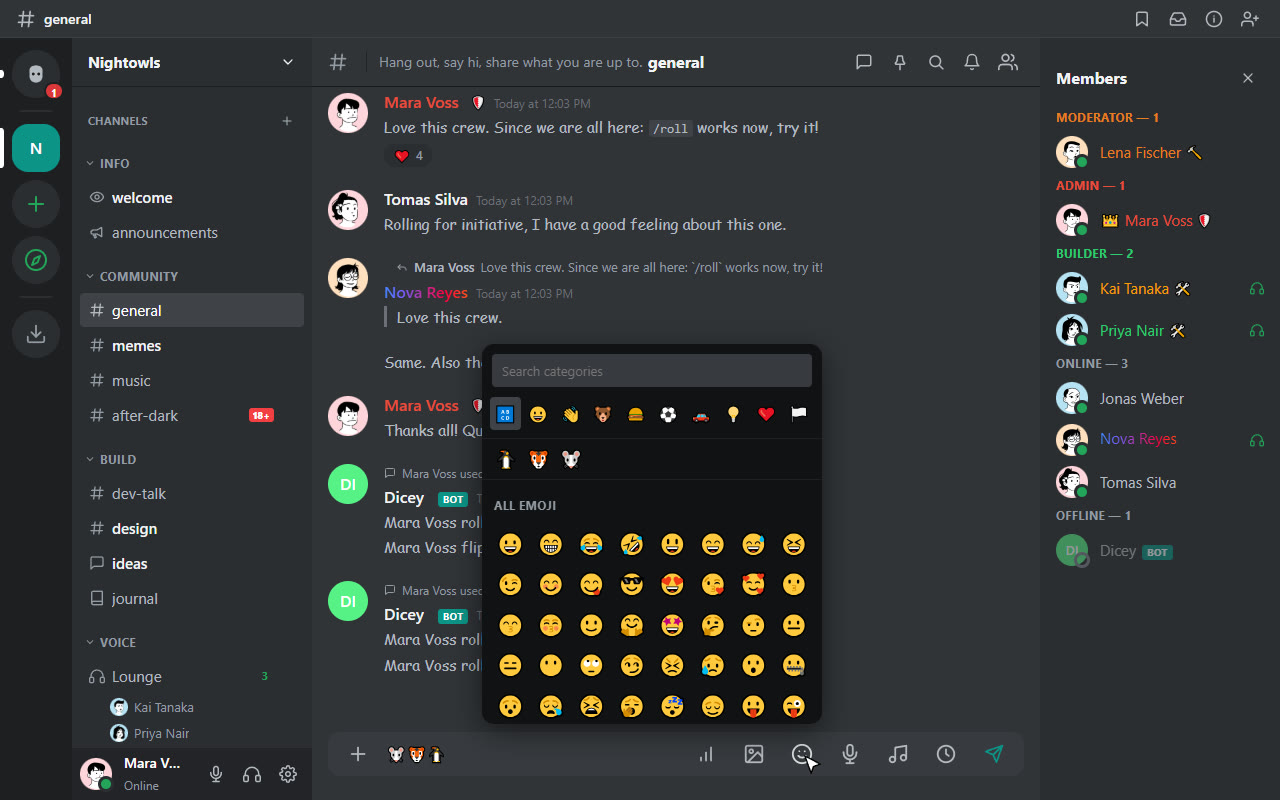
:and a name for emoji shortcodes,@for mentions and#for channels. - Links get a preview card.
Mentions
@username notifies a person, @rolename a role (single-word names), and @everyone or @here everyone or the people online. Bots can never ping the whole server.
Replies, threads and forums
- Reply to quote a message. Forward copies a message to another conversation.
- Threads start from any message and have their own history. The Threads panel lists every thread in a channel. A thread's creator or a channel manager can give it an icon or delete it.
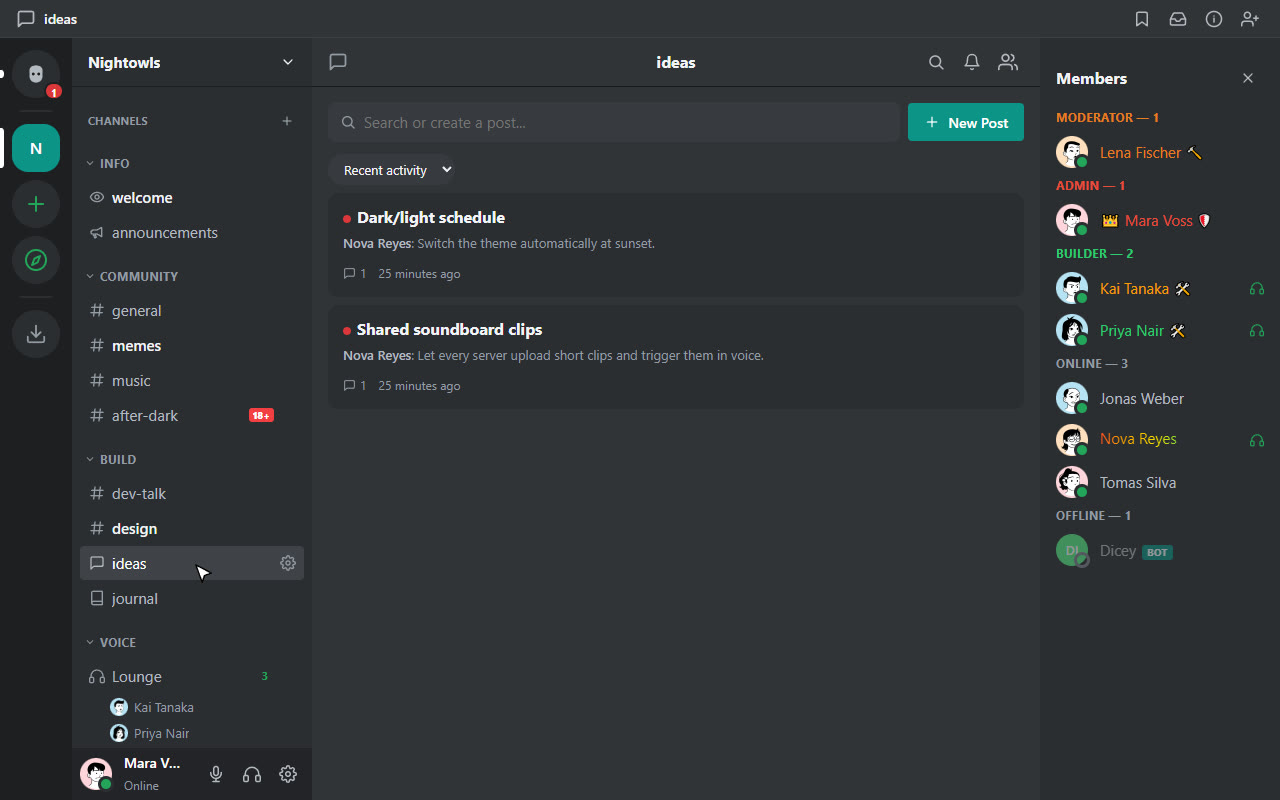
- Forum channels consist entirely of posts, each with its own thread. Posts show as cards with the author, a preview of the opening message, an image thumbnail, the reaction count and the reply count. A search box finds or starts a post, you can sort by Recent activity or Newest posts, and closed posts carry a Closed badge and accept messages from moderators only. On a wide screen the chosen post opens beside the list; on a phone it opens full screen.
Reactions, polls and pins
Click a reaction to add yours. Polls take a question and options and show live percentages; you can choose several options when the poll allows it. Pinned messages are listed in the pin panel.
Checklists
A checklist is a list of items that people tick off, such as a shopping list or a to-do list. Use the check button next to the message box (on a phone, + then Create Checklist), give it a title (shown as the card's header) and add one item per line. You can also type /checklist Title | item | item or /poll Question | option | option. Unticked items are red, ticked items are green, and the whole card turns green when every item is done. The card follows your theme.
- Where: public and private channels, threads, DMs, group DMs and your Notes channels. Checklists are not available in end-to-end encrypted DMs.
- Who can create: in public channels you need the Create Checklists role permission (admins and moderators with Manage Messages always can). In private channels and DMs every member can create one. In a Notes channel it is always you.
- Who can tick: by default only the creator. The creator can give other members Can check (tick items) or Can edit (also add, rename, remove and reorder items and change the title) from the pencil on the card. Only the creator changes who has access.
- Editing later: the creator and members with Can edit can change the list at any time; changes appear live for everyone.
- In Notes: a checklist is stored inside the encrypted note, so the server and admins cannot read it. Use the check button in the Notes composer; the header is optional there. Tick and edit items, and change the header, on the saved note.
Attachments
Up to five attachments per message. Still images can be resized before upload (Original, 1920, 1280 or 800 pixels), animated GIFs get a play and pause button, and non-ASCII file names are kept. The size limit comes from maxUploadMb and the admin panel; some file types (executables, HTML, SVG) are always refused.
Voice messages
The microphone button in the composer records up to five minutes. A red bar shows the time; the bin discards the clip and the send button posts it with a small player (play, progress, seek). It is recorded as Opus in the browser, desktop app or Android app and needs microphone permission and HTTPS or localhost.
Scheduled messages
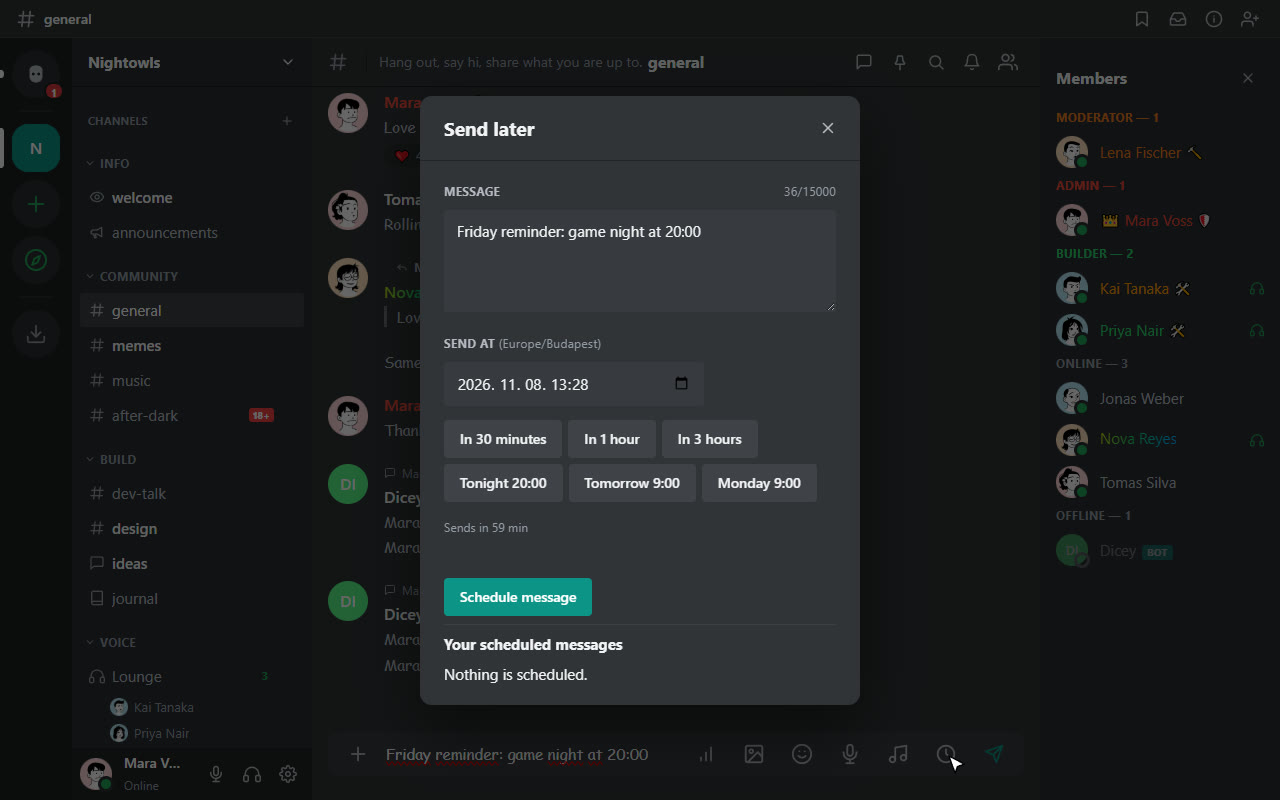
The clock button next to the composer opens Send later for what you typed. Pick a time or a preset such as in 3 hours, tonight or tomorrow at 9:00; the editor shows your time zone, how long until it is sent and a character counter. A pending message can be edited (text and time) or cancelled from the list. The message is posted as you at that moment with the same checks as a normal message, so it can still be refused, for example if you are timed out or AutoMod objects. Failures stay in your list with the reason, and you can cancel anything you scheduled. On the phone interface hold the send button.
Notes channels and DMs with people on other servers cannot be scheduled.
Slash commands
Type / to see the commands you can use. Built-in commands include /me, /nick, /shrug, /spoiler, /thread, /topic and /help. Bots can add their own; see Slash commands.
Search
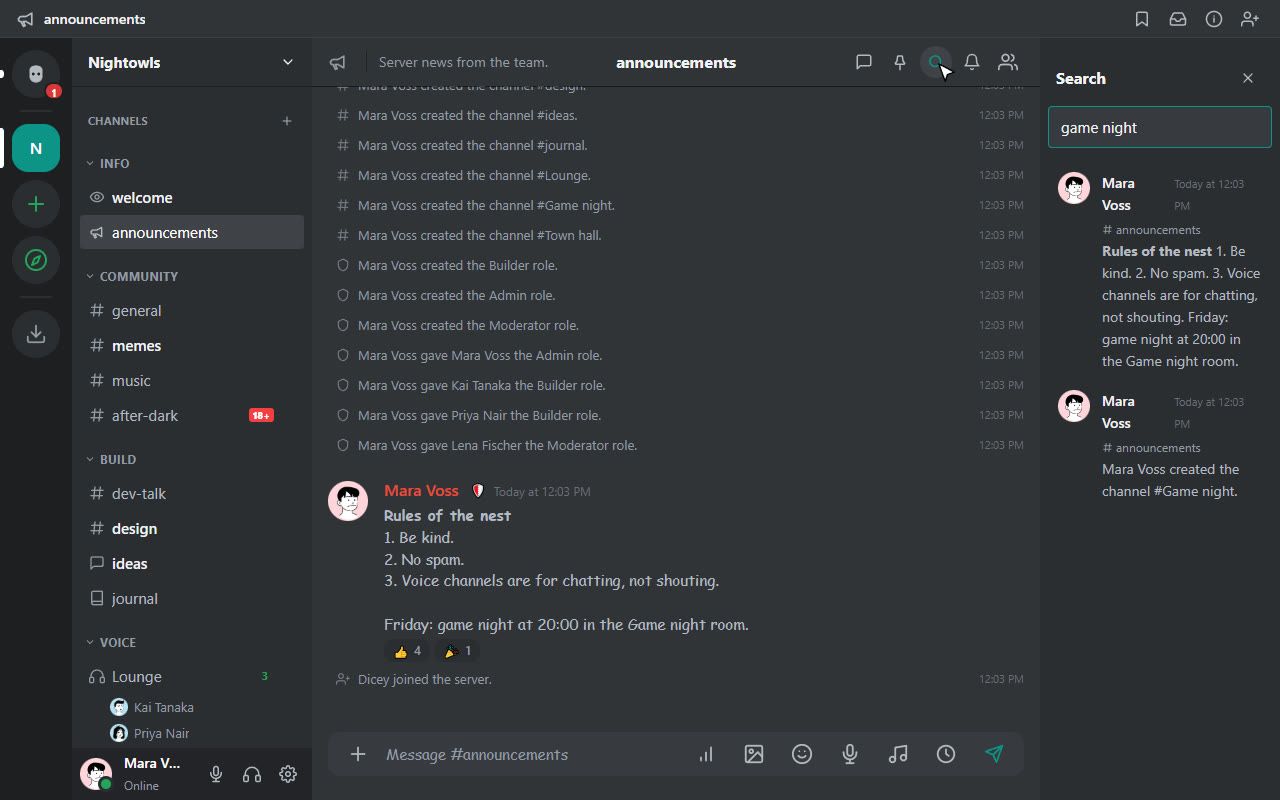
Open search from the magnifier. Tick which fields to match: message text (full-text search), usernames, channel names and attachment file names. Results open at the message in its channel. Search covers only conversations you can see; Notes channels and encrypted DMs are not searchable, and age-restricted channels are left out until you confirm your age.
Notifications
Each channel and DM can be muted, set to mentions only, or to everything (the default is mentions for channels and everything for DMs). Desktop notifications use the browser or the desktop app. The tray icon of the desktop app shows an unread badge. Automatic log events in announcement channels (joins, renames and similar) only mark the channel as unread; they notify you only if you set that channel to everything. On Android see the Android app.
The notification grid
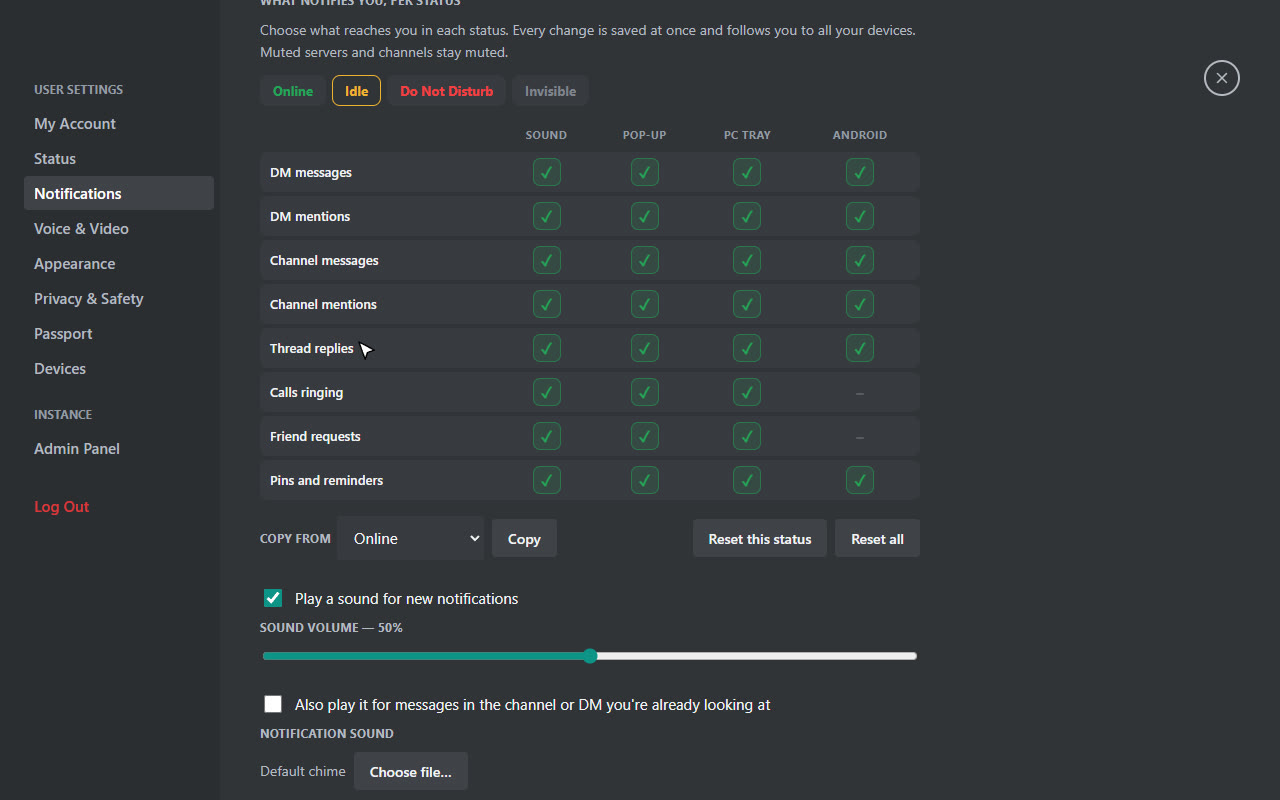
Under Settings, Notifications (on a phone: You, What notifies you, per status) you decide, for each status, what reaches you. Pick a status tab (Online, Idle, Do not disturb, Invisible) and switch each kind of event on (green check) or off (red cross) for four places:
- Sound: the notification chime.
- Pop-up: the browser or desktop pop-up.
- PC tray: the desktop app's tray list and badge.
- Android: the phone alert. When it is off the server does not send the alert at all.
The events are direct messages, direct-message mentions, channel messages (channels set to all), channel mentions, thread replies, calls ringing, friend requests, and pins and reminders. A dash means the place does not apply to that event. Copy from copies another status into the one you are editing, and Reset this status and Reset all bring back the defaults. Changes are saved at once and follow you to every device.
The defaults match the old behavior: Do not disturb and Invisible are silent, everything else is on. Every status can be changed, Online included, but a warning appears while Online differs from its defaults, because switching things off there is easy to forget. Muted servers and channels stay muted whatever the grid says. The sound on or off for a single device (volume, your own sound file) stays under the grid in the same settings page.
A chat you open with unread messages shows a red New line above the first one; see Profiles, status and themes for its settings. The line is drawn for messages that arrived while this device was offline (change that under the unread settings), and the chat opens at it. A chat otherwise stays at the newest message, and a round jump to latest button appears whenever you scroll away from the bottom. The pinned messages list updates live when someone pins or unpins a message.
Incoming webhooks
A channel manager can create incoming webhooks under the channel's settings. A script POSTs JSON to the webhook URL and a message appears with the webhook's name and avatar. See Bots, API and webhooks.